Last updated: August 11, 2026
Quick Answer
Three layers beat one. For safe search settings google, youtube, bing: parent’s setup guide, turn on the built-in safety tools in Google, YouTube, and Bing, then back them up with your child’s account controls so a quick tap cannot undo the work. In most homes, the setup has 3 parts: account, app, and device. It cuts down accidental exposure; it does not create a magic shield. Honestly, I’d treat it as one layer, not the whole plan.
Key Facts
- Safe Search works best when it is set on the child’s account, not just in one browser.
- YouTube needs its own controls; Google SafeSearch does not clean up the YouTube app.
- Bing matters on Windows devices and in Microsoft browser profiles.
- Private browsing can bypass a browser-only setup.
- A child account with Family Link or Microsoft Family Safety gives stronger control than a single toggle.
- Search filters reduce explicit results, but they do not make the internet child-safe.
- Google, YouTube, and Bing all have support pages you can check for current steps.
What Actually Decides the Right Setup
One device. One answer. When your child uses a phone or tablet alone, the better move is usually to set the filters in the account rather than only in the browser. On a shared family computer, browser-level controls may be enough for now. Yet when your child can switch accounts, use private browsing, or install apps, the answer changes fast: you need account controls plus device controls.
Here’s the clean way I think about it:
| Situation | Best Path | Why Other Options Fail |
|---|---|---|
| Young child on a shared device | SafeSearch + YouTube Restricted Mode + Bing SafeSearch | Browser-only settings are easy to clear |
| Child on their own Google account | Family account controls and supervised settings | Search settings alone do not stop account sign-outs |
| Teen with strong privacy needs but some guardrails | Moderate filters, device rules, and open conversation | Overblocking creates workarounds fast |
| School Chromebook or managed device | School policy first, parental controls second | You may not be able to override admin settings |
| Child using mostly YouTube app | YouTube Restricted Mode and supervised experience | Google SafeSearch won’t clean up the app feed |
Where does your child actually search? Browser, app, or signed-in account. That question matters more than the brand name on the filter. A setting in Chrome does little if they spend their time in the YouTube app. And a Bing filter does nothing if most traffic comes through Google.
For parents, the real goal is not “block all bad things.” It is “reduce accidental exposure and make bypassing harder than the child wants to bother with.” That is a far more realistic target, and it leads to better setup choices. In practice, that’s the difference between a decent fence and a cardboard sign.
Quick check: if your child can open a different app or sign out of an account, you need more than one filter.
Google SafeSearch: Set It Where Your Child Actually Searches
Google is the main search engine for many families, so I would set SafeSearch in three places: the Google account, the browser, and the device. Do only one, and the account is usually the best place to begin. Still, when your child uses multiple browsers or shared devices, account settings alone can leave gaps.
The practical steps:
- Sign in to the Google account your child uses most often.
- Go to Google Search settings and turn on SafeSearch.
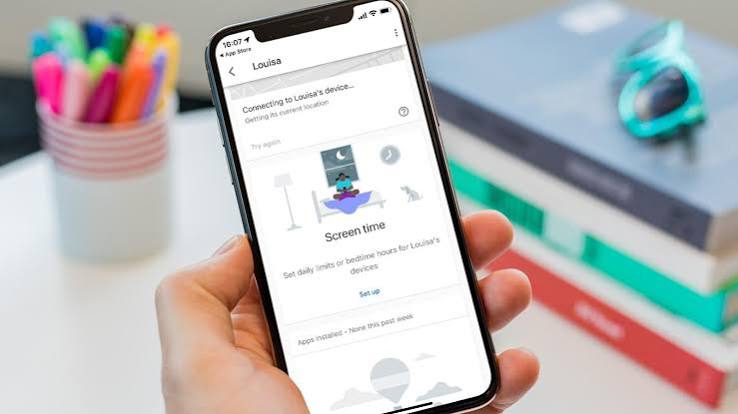
- If the account is a child account under Family Link, confirm the child’s search settings are supervised there too.
- On each browser your child uses, check whether SafeSearch is still on after sign-in and after a restart.
- On the device, review screen-time or content restrictions so another browser is not used as a workaround.
- Check Google Images and shopping/search results separately if your child tends to roam through image search.
Under Family Link supervision, you usually get more durable control than from a plain browser setting. Without that, I would still set SafeSearch on the Google account itself and use it as the baseline. Then check whether a parent or guardian should consult a professional for broader safety questions. The catch is simple: a child with enough access can often switch accounts, use another browser, or browse while signed out. Set it once and forget it? Bad plan.
A detail many generic guides skip: SafeSearch is a search filter, not a complete content filter. It reduces explicit search results, but it will not make the internet child-safe. Sometimes it also hides harmless results. Annoying? Sure. Still normal. When your child uses Google for homework, I’d rather keep the filter on and tolerate a few false positives than leave search wide open.
Official reference if you want the source straight from the provider: Google’s SafeSearch help pages and Family Link help pages are the right places to confirm current steps. Google also documents Family Link and SafeSearch support at https://support.google.com/families/ and https://support.google.com/websearch/.
Quick check: if your child uses Google while signed in, fix the account first; if they use several browsers or devices, add device controls next.
YouTube: Use Restricted Mode, but Don’t Stop There
YouTube is often the bigger headache. So the answer is not just “turn on SafeSearch.” Google search settings do very little for what happens inside YouTube. You need YouTube’s own safety settings, and in many homes that means the supervised experience or Restricted Mode.
Here’s how I’d choose:
- If your child is very young, use a supervised YouTube experience or YouTube Kids rather than regular YouTube.
- If your child is older and needs regular YouTube for homework or hobbies, use Restricted Mode.
- When your child already knows how to switch profiles or browse while signed out, pair it with account supervision and device limits.
The steps I’d follow:
- Open YouTube while signed in to the child’s account.
- Turn on Restricted Mode in the account or browser settings.
- Check the same setting in the YouTube app, not only in a browser.
- If the child has a Google Family Link account, consider a supervised YouTube setup instead of relying on Restricted Mode alone.
- Review autoplay, watch history, and search history so the recommendation feed does not drift into odd places.
- Lock down app installation and account switching on the device if possible.
Restricted Mode helps, but I would not oversell it. It can miss things, and it can also hide perfectly normal content. That matters for older kids who use YouTube for science demos, music, coding, or sports clips. If the filter is too tight, they will just start using someone else’s device or a different platform. The system can get weirdly slippery there.
Once you look at thumbnails, comments, and suggested videos, it becomes obvious that YouTube is not a single-setting problem. Kids find content through comments, embeds, shorts, thumbnails, and suggested videos. The path is rarely as simple as “search, click, done.”
A useful benchmark in my head: if your child can get from a safe homepage to random video suggestions in two taps, the setup is too loose. Tighten account control before arguing about individual channels.
Quick check: when most of the risky content comes from video suggestions, use YouTube’s own controls, not just Google SafeSearch.
Bing SafeSearch: Good Backup, Not a Primary Shield
When your family uses Bing only occasionally, then Bing SafeSearch is a sensible backup. When Bing is the default on a Windows machine or Microsoft browser profile, then it deserves the same attention as Google. Yet if your child’s real search habit is still Google, I would not spend your whole effort on Bing and call it done.
The setup is straightforward:
- Open Bing while signed in to the relevant Microsoft account if your child has one.
- Set SafeSearch to the strictest reasonable level for your child’s age.
- Check that the setting stays on after you close and reopen the browser.
- Review browser privacy settings so the child is not using a private window to bypass the account.
- On Windows devices, confirm Microsoft Family Safety or the device’s child account rules are in place too.
- Test the home page, image search, and video results separately, because each surface can behave a little differently.
Bing gets overlooked because families sometimes act as if Google is the only search engine that matters. Not true. Windows laptops, some work-managed browsers, and any device where the default search engine has been changed can all pull Bing into the picture. If your child is on a family PC, check the browser’s search box, not just a tab with the search site.
The trade-off here is plain. Strict search filtering can block helpful results, especially for health, anatomy, or school topics. If your child is old enough to need normal research, you may need a lighter setting plus supervised browsing rather than the strictest filter all the time. For health questions, I would still encourage asking a pediatrician or another qualified professional when the topic is personal or urgent, and you can also check Microsoft’s Bing SafeSearch help for current guidance. No magic wand. Just better odds.
Quick check: when Bing shows up because of the browser or a Windows setup, configure it as part of the whole device, not as an isolated website setting.
The 3 Conditions That Change Everything
Remember this section if you remember nothing else. These are the three things that turn a setup from “good enough” into “not enough.”
1) Your child can sign out or switch accounts
When your child can leave the filtered account and use a regular one, the filter loses most of its value. Then you need account supervision, password control, and device-level restrictions. I would not rely on trust alone here. Kids do what is convenient.
2) Your child uses the YouTube app more than the browser
App-first use changes the whole picture. Browser settings will miss the problem if the app is the main doorway. Then the YouTube app settings, supervised experience, and app-install restrictions matter more than Google Search settings.
3) The device is shared
When siblings or adults use the same device, one person’s filter setting can conflict with another person’s needs. Separate profiles work better than one shared profile full of toggles. That avoids accidental overblocking and avoids the “someone turned my setting off” problem.
For the first condition, I would use this path:
- Make the child’s account the default login.
- Keep the password private.
- Turn on account supervision where available.
- Block new account creation if the device allows it.
- Remove unused browsers or make them harder to access.
For the second condition:
- Open the YouTube app, not just the website.
- Set Restricted Mode or supervised viewing inside the app.
- Disable app installs from unknown sources.
- Review device settings that allow profile switching.
- Keep the app signed into the child’s account.
For the third condition:
- Create separate child and adult profiles if the device supports them.
- Give each user their own browser profile.
- Set search filters on the child profile only.
- Turn off “remember me” on shared sign-ins if that creates confusion.
- Check settings after updates, because shared devices are where updates often reset things.
Quick check: when a child can escape the filter by changing login state, the whole plan needs account and device controls, not just search settings.
Edge Cases Where the Normal Advice Breaks Down
Odd setup? That usually means the standard guide is too tidy. These are the cases that break the usual advice.
| Situation | What Changes | What to Do Instead |
|---|---|---|
| Child uses incognito/private browsing | Browser settings may not stick | Use account supervision and device restrictions |
| School-issued Chromebook | Admin rules may override you | Check school policy; set rules at the account level only if allowed |
| Child needs broad school research access | Strong filters can block useful content | Use lighter search filtering plus supervised browsing |
| Multiple children share one device | One setting does not fit all ages | Give each child a separate profile |
| Teen is close to adult-level browsing | Heavy blocking often backfires | Use a lighter filter with clear house rules |
| Content keeps slipping through anyway | Search is not the main source anymore | Focus on app controls, recommendations, and screen-time limits |
When a child uses private browsing, the problem is not only search filtering; the browser can forget the state you wanted it to keep. Then account-level supervision matters more than any single toggle.
When the device belongs to a school, you may not be able to change much. That is normal. In that case, I would not waste time trying to outsmart the admin profile. Check what the school allows, and protect the home device instead. Google, YouTube, and Bing all have support pages that explain current account and device limitations.
When the child is old enough to need serious research, the usual “strictest setting possible” advice can become the wrong advice. It may block disease names, anatomy terms, or sites a teacher expects them to use. In that case, the better move is a guided setup, not a locked box.
Quick check: when the main problem is not the search engine but the app, the browser, or the device profile, you need a wider fix.
My Practical Setup Order for a Typical Family
When you want the order I would use, start here. For most parents, this is the fastest way to get the biggest gain early.
- Decide which account the child should use every day.
- Turn on Google SafeSearch for that account.
- Set YouTube Restricted Mode or a supervised YouTube setup.
- Set Bing SafeSearch if Bing appears in the child’s browser or Windows profile.
- Block easy escape routes: account switching, new browser installs, and private browsing where you can.
- Check the settings after a restart and after app updates.
- Talk through the rule plainly: the goal is safer browsing, not secret punishment.
I would also keep one plain-language house rule: if a child sees something upsetting or confusing, they tell an adult without getting in trouble for reporting it. That part matters as much as the technical setup, because no filter catches everything.
The honest limitation here is simple: safe search settings are a filter, not a parenting replacement. They cut down junk. They do not remove curiosity, peer pressure, or bad recommendations forever. If you expect perfection, you will be disappointed.