Last updated: August 11, 2026
Quick Answer: For screen time content restrictions on iPhone Android, start with the built-in tools: Screen Time on iPhone and Google Family Link on Android. Usually, two settings do most of the heavy lifting — a separate restriction passcode and app plus web limits. Apple and Google both document these controls, and Apple’s Screen Time and Google Family Link are the best starting point for most users. Clean, not fancy.
Key Facts
- iPhone setup starts in Settings > Screen Time.
- Android child-account setup usually starts with Google Family Link.
- A separate passcode matters more than the limits themselves.
- Content restrictions can cover apps, web content, media ratings, and purchases.
- If built-in controls leave gaps, DNS or router filtering can add another layer.
- For your own phone, start with fewer rules and tighten later if needed.
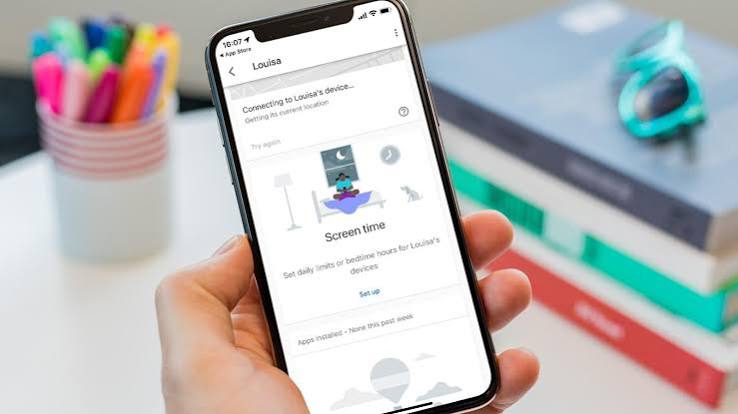
A child taps YouTube at 11 p.m., a teen finds a browser workaround, and suddenly the “simple” restriction plan is doing gymnastics. Use the built-in parental controls first, not a third-party app. On iPhone, that means Screen Time. For Android, it usually means Google Family Link, plus a few device-specific settings. Apple’s Screen Time and Google’s Family Link are the main tools for how set up screen time content restrictions on iphone android.
I’m going to show you the setup path that fits your situation, because “turn on restrictions” is not one job. Your steps change if you’re setting up a child’s first phone, trying to block adult content, or just stopping late-night doomscrolling. Small difference. Big outcome.
What You’re Actually Trying to Control
Less screen time? That is one setup. No explicit content? Different setup. No app installs without permission? Different again. Generic advice falls flat because it shoves all restrictions into one bucket.
For iPhone, Screen Time can handle app limits, downtime, content ratings, web filters, account changes, and purchase approval. With Android, Family Link can do many of the same things on a child’s Google account, but the exact controls depend on the phone maker and the child’s age. One size does not fit.
When you’re setting up a phone for a child, I would start with these three questions:
- Do you want to block time, content, or purchases?
- Do you need the controls to work even when the child knows the passcode?
- Is the phone an iPhone, an Android, or a mix in the family?
Those answers decide whether you use the built-in tools, add a family plan, or go further with router-level filtering. Skip that step, and you often end up with limits that are easy to bypass. Like a screen door on a submarine.
| Situation | Best Path | Why Other Options Fail |
|---|---|---|
| Child has an iPhone | Screen Time with a Screen Time passcode | A generic app blocker can be removed; Screen Time is built in |
| Child has an Android | Google Family Link | Android controls vary by brand; Family Link gives the cleanest baseline |
| You only want to reduce your own usage | Screen Time or Digital Wellbeing with app limits | A child-management app is usually overkill |
| You need web and app content blocking | Built-in controls plus DNS/router filtering if needed | App-only limits do not stop browser workarounds |
Quick check: if you can say, “I need time limits,” “I need content filters,” or “I need both,” you’re ready for the right setup path.
Set Up Screen Time on iPhone the Right Way
An iPhone is usually the easiest place to start. For a child, do it from your own device or from the child’s phone while you still control the passcode. For yourself, skip the child-account bits and stick to limits you won’t hate by day three.
Start here:
- Open Settings and tap Screen Time.
- Tap Turn On Screen Time.
- Choose This is My iPhone for your own phone, or set up This is My Child’s iPhone if you are managing a child.
- Create a Screen Time passcode that is different from the device passcode.
- Set Downtime if you want certain hours to be phone-free.
- Set App Limits for categories like social, games, or entertainment.
- Open Content & Privacy Restrictions and turn them on.
- Set Content Restrictions for apps, web content, Siri, music, movies, TV shows, books, and app installs.
For a child, the passcode matters more than the settings themselves. If the child knows both the device passcode and the Screen Time passcode, the restriction is soft. Keep that Screen Time code private.
The settings I would prioritize first are these:
- App Limits for the apps that drain the most time
- Downtime for night hours and school hours
- Content Restrictions for web and explicit media
- Purchase Controls so App Store downloads need approval
A common mistake is blocking everything on day one. That usually backfires. Begin with the biggest trouble spots, then tighten the screws after a week if you need to. Too strict, too fast? People hunt for loopholes.
Quick check: if the main problem is “my child can keep using the phone in ways I don’t want,” Screen Time plus a separate passcode is the right starting point.
Set Up Google Family Link on Android Without Missing the Gotchas
Android child setups tend to be more scattered. For a child, Google Family Link is usually the cleanest way to set restrictions. Should the child already have a Google account, you can often supervise that account rather than create a new one. Cheap Android phone from a lesser-known brand? The built-in controls may be incomplete, which is exactly where Family Link helps.
Here’s the path I’d follow:
- On your phone, install the Google Family Link app.
- Open it and create a family group if you do not already have one.
- Add your child’s Google account or create one for them if needed.
- On the child’s Android device, sign in with the supervised account.
- Approve the setup prompts so supervision is active.
- Set daily limits and bedtime.
- Use App Activity controls to block or approve specific apps.
- Open Google Play settings to require approval for downloads and purchases.
- Turn on content filters where available, especially for Chrome and Google Search.
Android spreads controls around more than iPhone does. Family Link handles the family-management part, but the phone maker can still add its own settings. Handy when the device is well-supported; maddening when it isn’t.
I’d watch three areas closely:
- Chrome browsing: if web controls are weak, the child may use another browser unless you block it.
- App installs: if installs aren’t approval-only, new browsers and VPN apps can sneak in.
- Location and notifications: these are not content restrictions, but they often matter in real family use.
Digital Wellbeing may be enough for your own Android if you only want screen time help. But if you need true parental controls, Family Link is the better fit. App timers alone? Not enough, honestly.
Quick check: if the phone is a child’s Android, and you need approval for apps plus bedtime limits, Family Link is the path to use.
If You Need Content Blocking, Not Just Time Limits
Adult sites. Violent clips. Explicit music. Random browser holes. Time limits won’t touch those on their own. That is where people get annoyed: they set a 2-hour cap and leave unrestricted web access wide open.
For iPhone, go into Screen Time → Content & Privacy Restrictions → Content Restrictions. From there, I would check:
- Web Content: limit adult websites or allow only approved sites
- Apps: set age ratings
- Music, Podcasts, News: block explicit content where possible
- Books and Movies: apply ratings limits
- Siri: block explicit language if that matters to you
On Android, the exact menu depends on the setup. With Family Link, you can manage some content filtering through Google services, especially Chrome and Search. If that is not enough, the next step is often a DNS filter or router-level filter, because those catch more browsing traffic than one app setting can.
I would use this logic:
- If you only need to stop explicit apps and media, built-in controls are enough.
- If you need browser filtering across every app, built-in controls may not be enough.
- If you need the strongest home-wide control, add a filter at the router or DNS level.
Two real options people use are NextDNS and CleanBrowsing, both of which are known for DNS-based filtering. I’m naming them because they address a real gap: phone-level controls do not always catch every browser or app.
The drawback is straightforward. Stronger filtering also means more false blocks. Normal sites can break; some filters need upkeep. That trade-off is real, so I would only go there if the built-in tools leave a hole you care about.
Quick check: if the main issue is “the browser keeps getting around my rules,” you need content filtering, not just app timers.
When Screen Time Isn’t Enough: What to Add Next
If Screen Time or Family Link is already on and the phone still slips through, the usual suspects are pretty boring: the passcode is known, the child can install new apps, or the web filter is too weak.
Here’s the order I would tighten things in:
- Change the restriction passcode so the child cannot remove limits.
- Require approval for app installs and purchases in App Store or Google Play.
- Block account changes so email or family settings cannot be swapped out easily.
- Limit browser choices by removing or restricting alternate browsers.
- Use allowed websites only if you need a very closed environment.
- Add DNS or router filtering if browser controls still leave gaps.
This is the point where I see people overcorrect. They buy a third-party monitoring app before they have even used the built-in controls properly. I would not start there. Monitoring apps add complexity, battery drain, subscription cost, and another thing to manage. Built-in controls are simpler and usually enough.
But there are cases where an extra tool makes sense. If you need cross-device visibility across both iPhone and Android in one family, or you want alerts about risky browsing patterns, a third-party family app may be useful. I’d treat that as layer two, not layer one.
One honest limitation: no phone setting can make a teenager unable to use a device badly if they have enough time, another device, or a determined workaround. The goal is to raise friction, not to create magic.
Quick check: if the child already found a workaround, you need to tighten passcodes and installs before you add anything else.
Edge Cases Where the Normal Advice Breaks
If the standard setup is not fitting, one of these situations is probably why:
-
Situation: The child’s phone is already in use and knows the passcode.
What changes: You cannot rely on the current lock.
What to do instead: Change the Screen Time or Family Link password first, then review app installs and browser access. -
Situation: The phone is on a family plan, but the child also has a tablet, laptop, or another phone.
What changes: Limits on one device do not cover the whole habit.
What to do instead: Set controls on every device the child uses, or the weakest device becomes the escape hatch. -
Situation: You want to block porn or adult sites, but the user can still open a VPN app.
What changes: VPNs can route around simple filters.
What to do instead: Restrict app installs, block VPN apps where possible, and consider DNS or router filtering. -
Situation: The Android phone is from a manufacturer with heavy custom software.
What changes: Some built-in parental controls are inconsistent.
What to do instead: Use Family Link for account supervision and check the phone maker’s own parental settings as a backup. -
Situation: You are setting up your own phone, not a child’s.
What changes: Harsh restrictions often fail because you can turn them off.
What to do instead: Use downtime, app limits, and notification cleanup; keep the setup annoying enough to help, not so strict that you immediately disable it. -
Situation: The user needs school or work apps that are only sometimes appropriate.
What changes: A blanket block can break legitimate use.
What to do instead: Use app-specific limits and approved-app lists instead of a full lockout.
Quick check: if your setup keeps failing in the same place, the issue is probably one of these edge cases, not the whole system.
The Short Version: What I Would Do in Real Life
For an iPhone, I would turn on Screen Time, set a separate passcode, add downtime, then lock down content and purchases. For an Android child account, I would use Family Link first, then fill in any gaps with the phone maker’s controls or DNS filtering if needed.
If you are the parent, start with the few rules that matter most.