Last updated: August 11, 2026
Quick Answer: To teach kids how to spot phishing emails fake websites, give them a 4-step check, practice it for 10 minutes a week, and use one rule: should a message request a password, code, or payment, stop and verify through the official app or a trusted adult.
A wrong tap is all it takes. One click. Then the trouble starts.
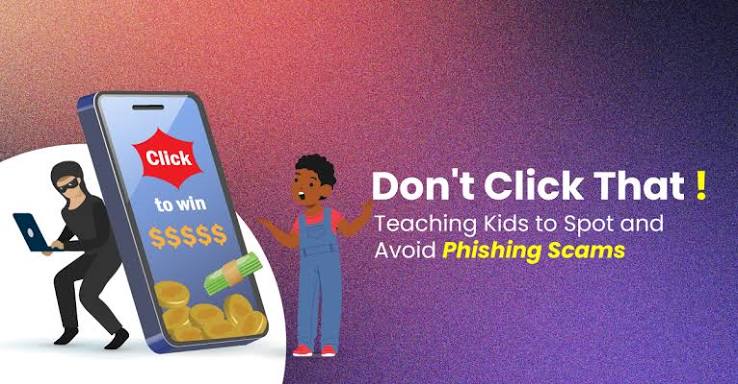
Your kid does not need a lecture about “being careful.” Give them a short checklist they can actually use on emails, texts, and websites; then run through real examples until the habit clicks. In this guide to how teach kids spot phishing emails fake websites, the aim is not to make children wary of everything. It is to help them pause long enough to catch the tricks phishing emails and fake websites rely on: pressure, odd addresses, strange links, and requests for passwords or gift cards. Honestly, that trade-off matters.
Key takeaways
- Kids do not need to be tech experts to spot phishing emails fake websites.
- A 4-clue check works in about 10 seconds: sender, spelling, link, request.
- Should a message request a password, code, or payment, stop before tapping.
- With younger kids, the safest habit is to open the app or ask an adult.
- Phishing and fake websites often rely on urgency, not technical tricks.
- The FTC and APWG both advise verifying through official sources.
I’m writing this for a parent, grandparent, or caregiver who needs a practical way to protect a child who already uses email, a school portal, game logins, or shopping sites. Again, the point is not suspicion for its own sake. It is to help kids slow down just enough to notice the same traps: pressure, odd addresses, weird links, and requests for passwords or gift cards.
What Actually Matters: Kids Don’t Need to Be Tech Experts
Under age 10, the rule is plain: don’t click, don’t reply, and ask an adult when a message wants money, login details, or urgency. Older kids — especially ones handling school accounts or game accounts alone — should add a few checks for sender address, link destination, and website clues.
Generic advice often turns “phishing” into a giant technical topic. That misses the mark. For kids, it is mostly pattern recognition, and when you are unsure how much detail fits your child, consult a school technology lead or another professional who helps families with device safety. Scammers lean on three things:
- Pressure — “Your account will close in 10 minutes.”
- Bait — “Free Robux,” “confirm your prize,” “reset your password.”
- Mismatch — the sender, link, or website does not match the claim.
Teach this first, and skip the fluff: stop before tapping anything that asks for a password, code, payment, or personal details. Then verify the source another way.
Here is the basic decision table I would use with a child.
| Situation | Best Path | Why Other Options Fail |
|---|---|---|
| School email asks them to log in again | Open the school app or type the school address themselves | Clicking the email link can take them to a fake login page |
| Game message says they won a prize | Close it and ask an adult | Scammers use prizes to rush kids into giving up passwords |
| Text says a package is delayed | Check the retailer or carrier app directly | The link may lead to a fake tracking site |
| Message asks for a code sent to their phone | Never share the code | Codes are often the last step scammers need to take over an account |
To make this stick, start with boring examples. A fake “library account expired” message teaches the same cues without the panic. That matters when you are trying to teach kids how to spot phishing emails fake websites without turning every login into a fire drill.
Quick check: When your child knows to pause on any message that asks for a login, code, or payment, you have the right starting point.
Teach the 4 Clues Kids Can Check in 10 Seconds
When a message feels urgent, do not read every line. Scan for four clues instead: sender, spelling, link, and request. Even if those four pass, the message may still be fake; if one fails, stop.
I like this because it works for email, text, and even in-app messages. Kids can learn it as a chant:
Who sent it? What does it want? Where does the link go? Does it feel rushed?
Younger kids should focus only on the display name and the actual address long enough to catch obvious nonsense. Older kids can handle more: scammers copy real domains with tiny changes, like extra words, odd endings, swapped letters, or one character that looks fine at a glance. Sneaky stuff. Nasty little details.
Use an actual browser or mail app to show these checks:
- Hover over links on a computer before clicking.
- Press and hold on a phone to preview the link.
- Look for domain names, not the page title.
- Treat shortened links with caution unless they come from someone they truly know, and when you are unsure, consult a trusted IT contact or another professional before opening them.
For websites, teach them to ask: Am I on the real site, or did I arrive here from an email link? If they opened a login page from a message, a safer routine is to close it and go to the site by typing it themselves or using a saved app. The FTC recommends checking the destination before entering information, and that rule is useful for families too.
A simple walk-through helps.
- Read the message once without clicking anything.
- Find the sender name and check whether the address or number makes sense.
- Look for urgency words: now, today, final warning, locked, verify.
- Inspect the link before opening it, or avoid the link entirely and go directly to the real site.
- Ask: would this message still make sense if the link were removed?
- When anything feels off, stop and ask an adult before replying.
I would not pile on giant scam lists here. Kids remember short routines; lectures slide right off. The FTC and the Anti-Phishing Working Group both keep their guidance simple for exactly that reason.
Quick check: When your child can tell you the sender, the ask, and the real site without clicking, they are learning the right skill.
How to Teach Kids to Spot Phishing Emails and Fake Websites Without Freaking Them Out
Already clicked once? Fine. The lesson is not “you messed up.” It is “let’s learn the recovery steps now.” Shame makes kids hide mistakes, and hiding is what scammers count on.
Start with examples tied to your child’s real life: school portals, gaming accounts, streaming logins, and online homework tools. If they use Roblox, Google Classroom, Microsoft accounts, Nintendo, Epic Games, or a favorite store app, use those names in practice. A fake message is easier to spot when it imitates something the child already knows.
I would teach in this order:
- Show one fake message and one real message. Point out the sender, link, and request.
- Ask them to name the red flags. Do not jump in too early. Let them notice the odd address or pushy wording.
- Practice the safe response. “I will open the app myself,” “I will ask my parent,” or “I will ignore this.”
- Repeat with different formats. Email one day, text the next, game chat later.
- Close the loop. If they nearly clicked, show what to do next: tell you, change the password if needed, and sign out of other devices if an account may be exposed.
For fake websites, I care about the small visual tells. Kids should look for:
- misspellings in the domain name,
- missing padlock icons as a warning sign, not proof by themselves,
- login pages that appear after a weird email link,
- pages that ask for a password when no login should be needed,
- forms asking for gift cards, crypto, or payment to “unlock” something.
Do not teach “if it has HTTPS, it is safe.” That rule is too weak. Many scam sites use HTTPS too. A padlock only means the connection is encrypted; it does not mean the site is honest. CISA and the FTC both warn that secure-looking pages can still be fake.
When you want an outside authority to back up your lesson, I’d point to the U.S. Federal Trade Commission’s consumer guidance on spotting phishing and the Anti-Phishing Working Group’s public education resources. They are not kid-specific, but the core advice maps well to family training. Google’s safety guidance also reinforces the same basic checks.
Quick check: When your child can explain why a fake site is fake, not just that it “looks weird,” the lesson is landing.
When the Standard Advice Is Wrong
For very young kids, the usual “check the URL” advice is too much. If they are not yet comfortable typing web addresses, make the rule simpler: never follow a login or payment link from a message; always open the app or ask an adult.
With teenagers, the problem flips. They may think they already know enough and skip the basics. Don’t lecture about scams in general. Focus on the accounts they actually care about. A stolen gaming account or school account is concrete. “Phishing” is abstract, which is why how to teach kids to spot phishing emails fake websites works best when the examples feel personal.
Sometimes the message comes through a school platform, family chat, or game chat, and the usual “look for bad spelling” advice does not help much. Real scam messages can be cleanly written. That is why I keep pushing the source-and-destination check. When the login page did not come from a route your child expected, inspect it before typing anything.
Password managers or passkeys change the game in a helpful way. A password manager can refuse to autofill on a fake domain, which is a quiet warning. Teach older kids to notice that. When autofill does not appear where they expected it, stop and check the address.
Speed ruins judgment. Busy kids click. So build the rule around hurry: No account changes, password resets, or “verify now” requests get handled alone when the child is tired, gaming, or trying to finish homework fast. That is when errors happen.
When the message claims to be from a real person but asks for codes or money, assume that account might be compromised. A good next step is to verify through another channel, like calling or speaking in person, because replying in the same thread may not be enough.
Quick check: When the standard checklist feels too hard for your child, simplify the rule instead of dropping it.
The Safety Nets That Catch What Kids Miss
Memory is unreliable. Add guardrails. That matters most for younger kids, kids on shared devices, and kids who bounce between phone, tablet, and laptop.
The best safety net is a family rule about verification. Any unexpected request for passwords, codes, payment, or personal details gets checked with an adult or through the official app/site. Put that rule near the device if needed. In practice, it works best when everyone follows it.
Next comes the technical layer, and it should stay simple:
- Turn on two-factor authentication where possible.
- Use a password manager for older kids who can handle it.
- Keep devices and browsers updated.
- Use separate accounts for school, games, and family when possible.
- Turn on safer search and family controls where they help, not as a substitute for judgment.
I would also teach kids what not to do after a click:
- do not enter a password on a page you do not trust,
- do not download an attachment just because it says “invoice” or “photo,”
- do not share verification codes,
- do not keep chatting with the sender to “see where it goes.”
When they already typed a password, act quickly: change the password on the real site, sign out of other sessions if that option exists, and tell the platform’s support team if the account is important. If a payment card or personal data was entered, contact the appropriate bank or service immediately and follow their fraud steps. For money or identity concerns, a qualified professional may be useful.
Real tools can help here. Browser password managers, Google Password Manager, Apple’s built-in password tools, Microsoft Family Safety, and the FTC’s identity theft resources are all worth knowing about. I would still treat them as backups, not replacements for teaching.
Quick check: When your child knows to slow down and use the family verification rule, the odds of a bad click drop.
Edge Cases: When Normal Advice Breaks Down
When a real friend’s account sends the message, the usual “look at spelling” advice may fail because the wording can be clean and familiar. What changes: the account may be hijacked. What to do instead: verify through a different channel before clicking anything or sending money.
A schoolwork site can be the trickiest one. When the login page looks normal, visual checks alone may not catch the fake. What changes: the scam may copy the design well. What to do instead: type the school or service address yourself, or open it from a bookmark or official app.
Shared tablets and family computers create another wrinkle. Saved passwords and autofill can hide problems until the wrong page appears. What changes: the device may auto-fill too easily. What to do instead: teach them to watch the URL first, then let the password manager fill only on the real domain.
QR codes are different again. When the scam arrives as a QR code in an email, text, or flyer, then link-hovering does nothing. What changes: the destination is hidden inside the code. What to do instead: avoid scanning unknown QR codes, especially for logins or payments. Open the site another way.
Sometimes the request is for a code from text or an authenticator app, and then the message may be trying to steal a login session, not a password. What changes: the code itself becomes the prize. What to do instead: never share a one-time code with anyone who contacted the child unexpectedly.
When the child is autistic, anxious, or easily overwhelmed, a long checklist may backfire. What changes: too many steps can freeze them. What to do instead: make the rule extremely short: stop, show an adult, do not click. Keep the later detail for practice, not the moment of stress.
Quick check: When the message is real-looking, urgent, or QR-based, treat it as higher risk and verify outside the message.
A Simple Practice Plan That Actually Sticks
To make this stick, practice for a few minutes at a time instead of doing one big lecture. The goal is not perfect memory. It is automatic caution.
Here is a plan I would use:
- Pick three examples: one safe email, one phishing email, one fake-looking website.
- Ask your child to say what each one wants.
- Have them point out the sender, URL, and urgency words.
- Ask what they would do next without clicking.
- Reverse the roles and let them teach you the checklist.
- Repeat a week later with new examples from school, games, or shopping.
A short practice session once a week is usually enough to keep the habit alive. When you make it part of a 10-minute family routine, it stops feeling like a “lesson” and starts feeling like safety. That is how to teach kids to spot phishing emails fake websites without making it feel like homework.
Quick check: When your child can explain the scam out loud, they are more likely to remember the fix later.
When repeated mistakes show up, narrow the lesson to one account at a time. Start with the account they use most, such as school email or a favorite game login. Then move to the next one. That keeps practice concrete and gives you a chance to reinforce the same checks in more than one place.
Finally, remember that the goal is not perfect detection. It is fewer rushed clicks, fewer exposed passwords, and faster reporting when something goes wrong. In families, that usually comes from repetition, not one big warning.